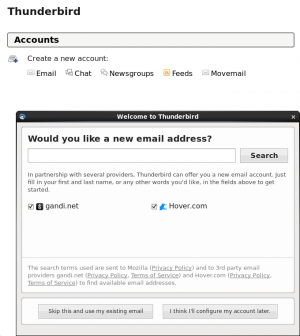
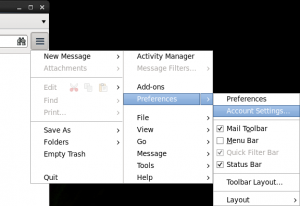
<li>[[Image:Thunderbird-1.png|right|300px|New Account page]] If you have no email accounts configured the 'New Account' dialog will automatically open.<br />If you already have accounts in Thunderbird and are simply adding CSEE mail to Thunderbird open the 'New Account' dialog by clicking on the 3 horizontal bars (menu button) and select 'Preferences' -> 'Account Settings...' then 'Account Options' -> 'Add Mail Account' </li>
<li>[[Image:Thunderbird-2.png|thumb|How to add a new account with accounts already added]]Fill in your name, csee email address (username@cs.umbc.edu) and your password. Thunderbird will attempt to automatically detect the proper settings. This will probably not work, this is ok. We will manually fill in the correct settings.</li>
If you've just downloaded/installed Thunderbird, then the New Account Setup dialog will pop up when you start Thunderbird. Otherwise, from the '''File''' menu, select '''New''', and then select '''Account'''.
|<br/>[[Image:thunderbird-1.png]]<br/><br/>
|-
|For the type of account, choose '''E-mail account''' and click '''Next'''.
|<br/>[[Image:thunderbird-2.png]]<br/><br/>
|-
|For '''Your Name''', enter your real name. (first and last name)
For '''E-mail Address''', enter your CSEE e-mail address.
Click '''Next''' to proceed.
|<br/>[[Image:thunderbird-3.png]]<br/><br/>
|-
|'''Enter information for mail servers.'''
Select the type of incoming mail server. You may select either '''POP''' or '''IMAP'''.
For the name of the '''Incoming Server''', you must type in "imap.cs.umbc.edu", even if you are using POP rather than IMAP.
For '''Outgoing Server''', type in "smtp.cs.umbc.edu".
Click '''Next''' to proceed.
|<br/>[[Image:thunderbird-4-imap.png]]<br/><br/>
[[Image:thunderbird-4-pop.png]]<br/><br/>
|-
|Enter your CSEE login name for both '''Incoming User Name''' and '''Outgoing User Name''', and then click '''Next'''.
|<br/>[[Image:thunderbird-5.png]]<br/><br/>
|-
|Enter the name you want Thunderbird to refer to your new account and click '''Next'''.
Review the settings you've selected for your new account and then click '''Finish'''.
Your new account is now set up, but there are still more things to configure for Thunderbird to use the CSEE mail services.
|<br/>[[Image:thunderbird-6.png]]<br/><br/>
|-
|'''Change incoming mail settings.'''
You need to set up Thunderbird to use a secure (SSL-enabled) IMAP/POP server.
From the '''Tools''' Menu (Windows/Mac OS) or the '''Edit''' menu (Linux), select '''Account Settings'''.
Under the account you just created, (labelled '''E-mail''' in the screenshot to the right) select '''Server Settings'''.
Change '''Port''' number:
* If you're using IMAP, change it to 993.
* If you're using POP, change it to 995.
Under '''Security Settings''', select '''SSL'''.
|<br/>[[Image:thunderbird-7-imap.png]]<br/><br/>
|-
|'''Change outgoing mail settings.'''
On the menu to the left, select '''Outgoing Server (SMTP)'''.
Highlight your outgoing mail settings (smtp.cs.umbc.edu) and select '''Edit'''.
|<br/>[[Image:thunderbird-8.png]]<br/><br/>
|-
|Under '''Security and Authentication''', make sure '''Use name and password''' is selected.
For '''User Name''', enter your login name.
Under '''Use Secure Connection''', select '''TLS'''.
Click '''OK''' to close this dialog and '''OK''' again to close Account Settings and save your changes.
Thunderbird is now ready to send and receive mail!
|<br/>[[Image:thunderbird-9.png]]<br/><br/>
|}
# If you have no email accounts configured the 'New Account' dialog will automatically open.<br />If you already have accounts in Thunderbird and are simply adding CSEE mail to Thunderbird open the 'New Account' dialog by clicking on the 3 horizontal bars (menu button) and select 'Preferences' -> 'Account Settings...' then 'Account Options' -> 'Add Mail Account'
# Fill in your name, csee email address (username@cs.umbc.edu) and your password. Thunderbird will attempt to automatically detect the proper settings. This will probably not work, this is ok. We will manually fill in the correct settings.
{| class="prettytable"
{| class="prettytable"
!
!
Revision as of 16:17, 31 October 2013
Overview
The CSEE mail servers use a secure connection for incoming and outgoing mail; so you will need to customize your mail client in order to read and send e-mail on your CSEE account. This page explains how to configure your e-mail client for the CSEE Mail Services. This page will discuss Thunderbird, Microsoft Outlook, and MS Outlook Express. If you use a different client, please refer to your client's documentation. You will need to set up your client for the following services:
Service
Server name
Port
Secure IMAP
imap.cs.umbc.edu
993
Secure POP
imap.cs.umbc.edu
995
Secure SMTP
smtp.cs.umbc.edu
25
Note: For Thunderbird and Microsoft Outlook, the same installation steps can be followed for both IMAP and POP server types. Outlook Express, however, must be configured to use POP. (see below)
Update 10/5/2010: Port 25 may no longer work for off-campus connections from the Verizon network. The work-around is to port 587 for SMTP instead.
Thunderbird (Windows/MacOS/Linux)
New Account page If you have no email accounts configured the 'New Account' dialog will automatically open. If you already have accounts in Thunderbird and are simply adding CSEE mail to Thunderbird open the 'New Account' dialog by clicking on the 3 horizontal bars (menu button) and select 'Preferences' -> 'Account Settings...' then 'Account Options' -> 'Add Mail Account'
How to add a new account with accounts already addedFill in your name, csee email address (username@cs.umbc.edu) and your password. Thunderbird will attempt to automatically detect the proper settings. This will probably not work, this is ok. We will manually fill in the correct settings.
Server Hostname
Port
SSL
Authentication
IMAP
imap.cs.umbc.edu
993
SSL/TLS
Normal Password
SMTP
smtp.cs.umbc.edu
25
STARTLS
Normal Password
If the 'Done' box becomes grayed out, click in one of the 'Authentication' boxes and select 'Normal Password' again. This should re-enable the button.
At this point email should be all setup, to check for new email click the "Get Mail" button.
Microsoft Outlook
Set up a new Account
If you're starting up Outlook for the first time, you'll see a new e-mail account wizard pop up. Otherwise, create a new e-mail account by selecting E-mail Accounts from the Tools menu.
Click Add a new e-mail account and then click Next.
Under User Information, enter your full name for Your Name and your CSEE e-mail address for E-mail address.
Under Server Information, enter "imap.cs.umbc.edu" for Incoming mail server (IMAP/POP) (use this address for both POP and IMAP) and enter "smtp.cs.umbc.edu" for Outgoing mail server (SMTP).
Under Logon Information, enter your login name for User Name and your login password for Password.
Under Server Port Numbers, for both Incoming Server (IMAP/POP) and Outgoing Server (SMTP), check the boxes that says The server requires an encrypted connection (SSL).
If you're using IMAP, make sure the Incoming Server port number is set to 993. If you're using POP, make sure it's set to 995.
Make sure the Outgoing Server port number is set to 25.
Click OK to close the More Settings dialog, and then click Next.
Alpine should work out of the box. However, the default access method uses direct access to your mail spool in /var/mail. This means that running multiple copies of Alpine (even on multiple systems) will not work. If you anticipate doing this a lot, you may wish to configure Alpine to use IMAP to access your mail. This change will require that you have to type your password to access your mail. This configuration is not recommended for general use.
With that said, to configure Alpine to use IMAP, edit the line beginning with inbox-path= in ~/.pinerc:
Alpine can also support the UMBC LDAP server to search for names and email addresses. This support can be added by editing the line beginning with ldap-servers= in ~/.pinerc (this is all one line):